



Course overview
Graphic design is more than just making things look good—it’s about communicating ideas visually and creating experiences that resonate. Our comprehensive course guides you through the fundamentals of design, from typography and color theory to mastering Adobe Illustrator and Photoshop. You’ll gain hands-on experience in creating logos, illustrations, layouts, and digital artwork while learning professional techniques used in the industry. By the end of the course, you’ll have the skills and confidence to develop a compelling design portfolio and bring your creative visions to life.
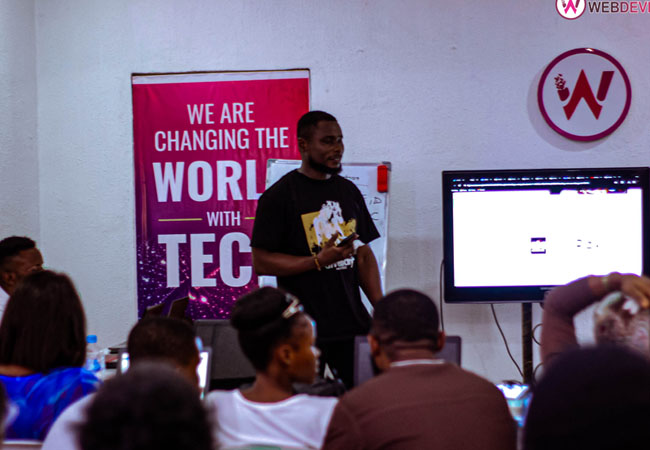
Throughout the course, you’ll work on real-world projects that simulate industry scenarios, helping you build a strong portfolio while understanding design principles in practice. You’ll also learn best practices for client communication, project workflow, and creative problem-solving, giving you a competitive edge in the design world. Whether you aim to work as a professional graphic designer, launch your own creative projects, or enhance your visual communication skills, this course prepares you to succeed in today’s dynamic design landscape.
Register now
Course Curriculum
- Definition of Graphic Design
- Types of Graphic Design
- Introduction to design principles
- Basic elements of design: line, shape, colour, texture, space, and typography
- Colour systems and models (RGB, CMYK, Pantone)
- Adobe Illustrator
- Setting up documents and artboards
- Adobe Illustrator Interface
- Vector Graphics
- Path, Anchor Points and Control handle
- Introduction to basic tools and panels in Illustrator
- Edit menu: copy and past, preference, etc
- File Organization
Typography
- Definition of typography
- Types of typography
- Anatomy of a typeface
- Understanding Font Pairing
- Terms in Typography
- Application of Typeface
- Using drawing tools: Pencil, Paintbrush, Blob Brush, and more
- Working with the Selection and Direct Selection tools
- Transforming, distributing and arranging objects
- Using the Transform panel and Align options
LAYOUT AND COMPOSITION
- Layout and Composition Definition
- Determining a Good Layout
- Creating basic shapes: rectangles, ellipses, polygons, etc.
- Drawing and editing paths with the Pen tool
- Using the Shape Builder tool and Pathfinder panel
TYPOGRAPHY AND TEXT EFFECTS IN ILLUSTRATOR
- Working with point and area text
- Changing Cases
- Formatting text using character and paragraph panels
- Creating text outlines and manipulating text as vector shapes
- Applying text effects and styles
- Type text on path
- Wrap text
- Understanding the colour wheel and colour harmonies
- Psychological effects of colour
- Practical application of colour in design projects
- Colour management for print and digital media
WORKING WITH LAYERS AND MASKS
- Understanding the Layers panel and layer organization
- Creating and editing layers
- Using clipping masks and opacity masks
- Applying transparency effects
EFFECTS AND APPEARANCE IN ILLUSTRATOR
- Applying effects: Drop Shadow, Gaussian Blur, etc.
- Using the Appearance panel for stacking appearance attributes
- Creating and editing graphic styles
- Applying 3D effects and transformations
- Creating and using symbols for reusable elements
- Working with the Symbolism tools
- Creating seamless patterns
- Editing and applying pattern swatches
DRAWING AND EDITING OBJECTS II
- Converting outlines to shape
- Expanding objects and appearance
- Object Menu: Offset path, rasterizing objects, lock objects, perspective, etc.
ILLUSTRATOR EXTRAS
- Replace fonts and colours
- Select menu: same, object, inverse selection, etc.
- Character and Paragraph Style
ILLUSTRATOR ARTWORK OUTPUT AND EXPORTING
- Preparing artwork for print and web
- Understanding file formats: AI, PDF, EPS, SVG, etc.
- Using the Export for Screens feature
- Exporting assets for various platforms and devices
CLASS TEST
- Overview of Photoshop interface and workspace
- Understanding raster graphics and their applications
- Introduction to basic tools and panels in Photoshop
- Setting up documents and canvases
LAYERS AND MASKS
- Opening, placing and saving images
- Understanding layers and layer organization
- Creating, editing, and organizing layers
- Using layer masks for non-destructive editing
- Applying adjustment layers for selective editing
IMAGE EDITING BASICS
- Cropping, resizing, and rotating images
- Adjusting brightness, contrast, and colour balance
- Removing blemishes and imperfections with the Healing Brush and Clone Stamp tools
- Working with selection tools: Marquee, Lasso, Magic Wand, and Quick Selection
- Refining selections with the Refine Edge tool
- Using advanced selection tools: Pen tool, Select and Mask, and Channels
- Creating complex selections for hair, fur, and detailed objects
- Saving and loading selection masks
TYPOGRAPHY AND TEXT EFFECTS
- Adding and formatting text layers
- Creating text effects: warping, blending modes, and layer styles
- Designing typographic compositions
- Working with character and paragraph styles
FILTERS AND SPECIAL EFFECTS
- Applying artistic filters and effects
- Using the Filter Gallery and Filter menu options
- Creating custom filter effects with Smart Filters
- Applying blur, sharpening, and noise reduction
- Using drawing tools: Brush, Pencil, and Eraser
- Painting with brushes and custom brush presets
- Working with the Brush panel and brush settings
- Creating digital artwork and illustrations
RETOUCHING AND RESTORATION
- Retouching portraits: skin smoothing, teeth whitening, and eye enhancement
- Restoring old or damaged photos
- Removing objects and distractions with Content-Aware Fill and Patch tools
- Applying digital makeup and cosmetic enhancements
IMAGE MANIPULATION AND RETOUCHING
- Advanced image editing techniques in Photoshop
- Colour correction and adjustment layers
- Retouching portraits and product photography
- Composite image creation and manipulation
CLASS TEST
- Preparing images for print and web
- Understanding file formats: PSD, JPEG, PNG, etc.
- Using the Save for Web feature
- Exporting assets for various platforms and devices
EXTRAS
- Photoshop integration with other Adobe Creative Cloud apps (e.g., Illustrator, InDesign)
- Automation and batch processing with Photoshop actions and scripts
- Introduction to Figma and Corel Draw
- Introduction to Logo Design and Brand Identity Design
- Creating logos and visual identities
- Branding principles
- Case studies of successful branding campaigns
- Hands-on logo design projects
- Understanding print production processes
- Preparing designs for print: colour modes, resolution, and file formats
- Print finishing techniques (e.g., binding, folding, die-cutting)
- Collaboration with print vendors and understanding print specifications
- Hands-on print design projects and portfolio preparation
- Creating vector illustrations from reference images
- Developing infographic designs
- Design Flyers and Posters with the information provided
- Designing a banner and billboard from the information provided
- Designing a brochure and program from the information provided
- Create a vibrant brand identity for the brand name provided
- Building a professional design portfolio
- Selecting and presenting design projects effectively
- Resume writing and job search strategies
- Interview preparation and networking tips
- Peer critique and portfolio refinement
Duration: 3-4 Months
Pricing: ₦200,000